
BankProspector - Building Your Target Watchlists
Building Your Target List with Watchlists
Watchlists are BankProspector's built-in tool for organizing and tracking the banks and credit unions you want to monitor. Whether you're building a prospecting pipeline, tracking institutions with high distress signals, or just keeping tabs on a shortlist of targets — Watchlists keep everything organized in one place.
You can create multiple named watchlists to separate your targets by strategy, geography, asset type, or any other criteria that makes sense for your workflow. Banks and credit unions are tracked separately since they report on different data.

Adding an Institution to a Watchlist
There are two ways to add a bank or credit union to a watchlist: from the search results table, or directly from an institution's profile page. Both methods open the same Manage Watchlists modal.
From Search Results (Search Banks or Search Credit Unions)
The fastest way to build a watchlist is directly from search results while you're prospecting.
- Go to Search Banks or Search Credit Unions and run your search.
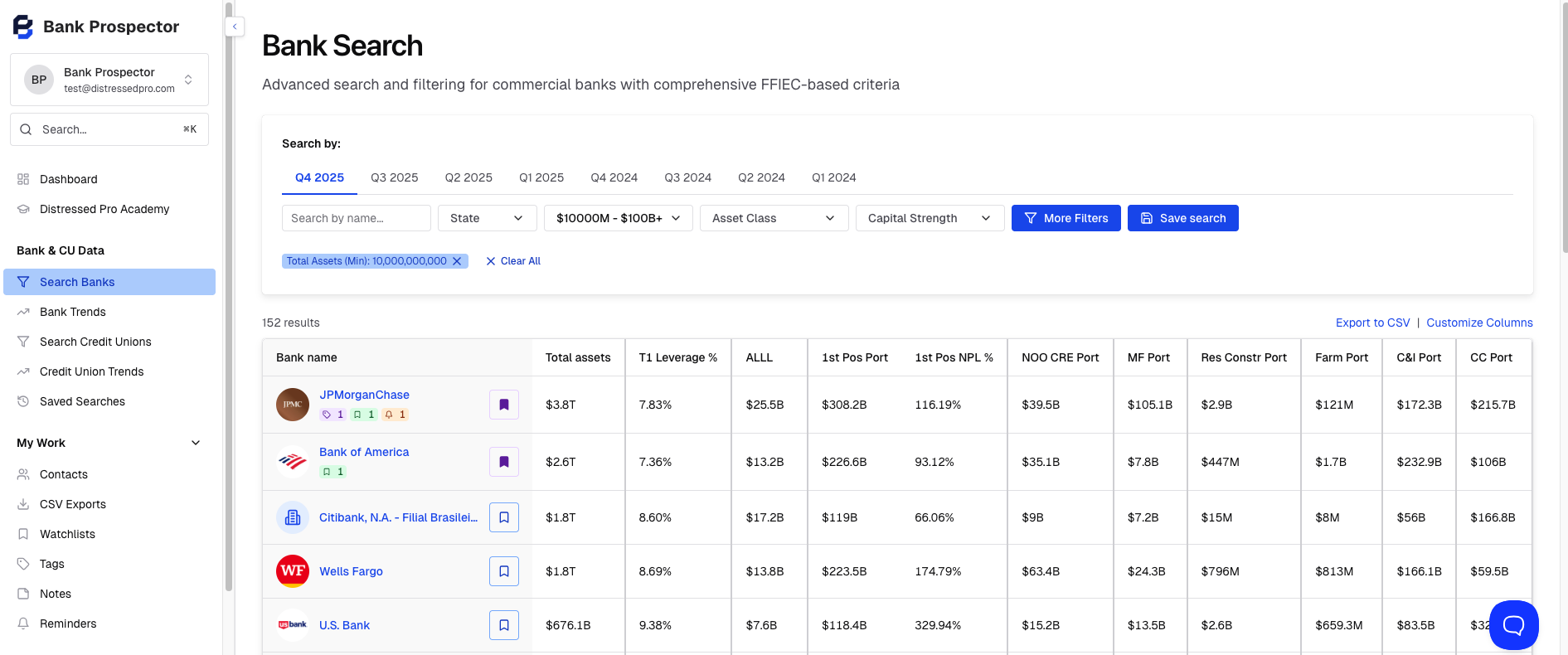
- In the results table, locate the bookmark icon to the right of the institution name.
- Click the bookmark icon. The Manage Watchlists modal will open.
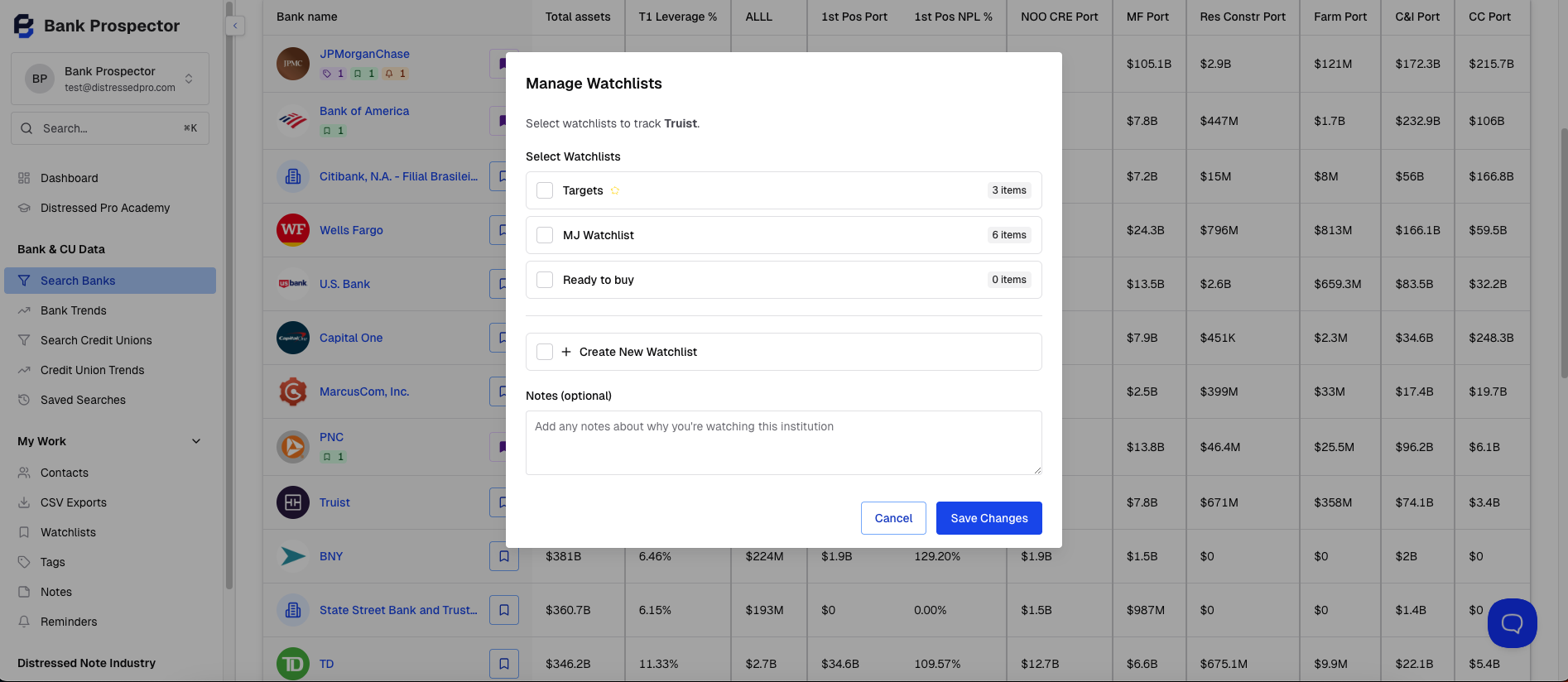
- Check one or more watchlists to add the institution to, or click + Create New Watchlist to create a new one on the spot.
- Optionally, add a note about why you're watching this institution.
- Click Save Changes. The bookmark icon will turn purple to confirm the institution has been added.
💡 Tip: You can add an institution to multiple watchlists at once — just check all the lists that apply before hitting Save Changes.
From an Institution's Profile Page
You can also add a bank or credit union to a watchlist while reviewing its profile.
- Open any bank or credit union profile page.
- Click the Watchlist button at the top of the page, next to the institution's name.
- The same Manage Watchlists modal will open. Select your list(s), add an optional note, and click Save Changes.

Managing Your Watchlists
Access all your watchlists at any time from My Work → Watchlists in the left navigation, or by going directly to bankprospector.com/platform/watchlist.

Banks vs. Credit Unions
Watchlists are organized into two tabs — Banks and Credit Unions — because each institution type reports on different data. Your bank watchlists and credit union watchlists are managed separately, but both live in the same Watchlists section.
Creating and Naming Lists
You can create as many named watchlists as you need. Click + New List from the Watchlists page to create a new one. Use names that reflect your strategy — for example:
- Targets — Your primary prospecting shortlist
- Ready to Buy — Institutions you're actively working
- Q2 Follow-Up — Institutions to revisit next quarter
- Midwest CRE — Geography or asset-class specific lists
💡 Tip: You can also create a new watchlist on the fly from the Manage Watchlists modal when adding an institution from search results — no need to set it up in advance.
Working with Your Watchlist
From the Watchlists page, each list gives you the following tools:
- Search — Filter institutions within the list by name
- Sort — Sort by any column
- Customize Columns — Show or hide columns to match your workflow
- Export to CSV — Download the list for use in external tools or reporting
- View — Click the eye icon in the Actions column to jump directly to that institution's profile page
- Delete — Click the trash icon to remove a single institution from the list, or select multiple institutions and delete in bulk
You can also click on any institution name in the list to open its full profile page in BankProspector.
Removing an Institution from a Watchlist
There are two ways to remove an institution:
From the Watchlists page: Click the trash icon in the Actions column next to the institution you want to remove. To remove multiple at once, select the checkboxes and use the bulk delete option.
From search results or a profile page: Click the purple bookmark icon (or the Watchlist button on a profile page) to reopen the Manage Watchlists modal. Uncheck the list(s) you want to remove the institution from and click Save Changes.
💡 Tip: Watchlists are a living part of your prospecting workflow — institutions will move in and out as their financial data changes quarter to quarter. Review your lists regularly to keep your pipeline current.